Navigation
One of the main features of dblab is its simple but very useful UI for interacting with your database.
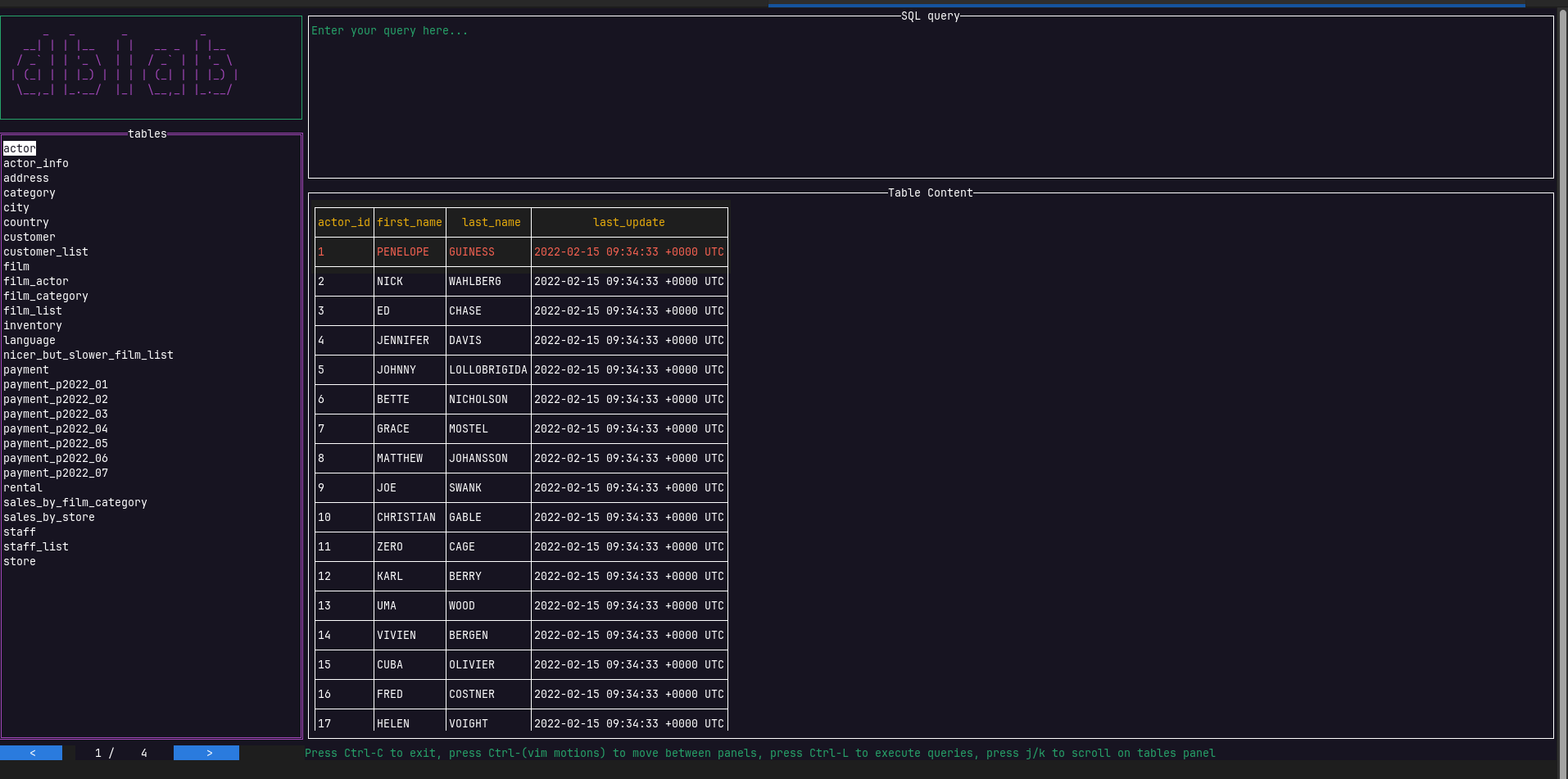
This tutorial walks through the UI step by step. For the complete list of key bindings, see the key bindings reference.
The three panels
The UI is split into three panels:
- the sidebar tree on the left, listing the database, its schemas and its tables
- the query editor on the top right, where you write SQL
- the result set panel below the editor, where results and table metadata are displayed
Move focus between them with Ctrl+H, Ctrl+J, Ctrl+K and Ctrl+L — left, down, up and right respectively. The focused panel is highlighted with a brighter border.
Selecting a table
Focus the sidebar and move through the tree with the Arrow Up and Arrow Down keys, or with k and j.
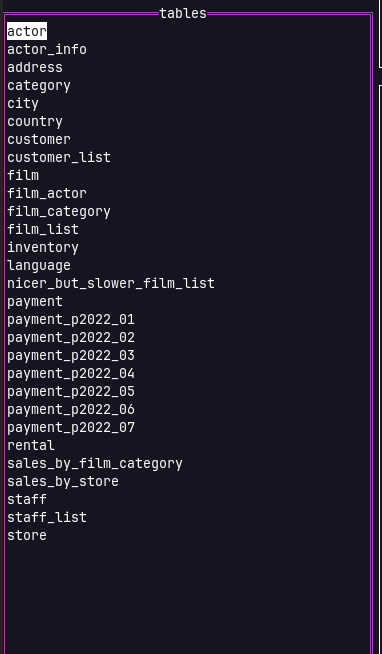
On a long catalog you don't have to walk the whole tree: alt+k and alt+j jump to the first and last visible node, and / starts a search by name — type part of the table you're after and press Esc when you're done searching. If a name is wider than the panel, h and l scroll the tree sideways.
Once the table you want is highlighted, press Enter to select it. dblab loads its rows into the result set panel and fills in the metadata tabs described below.
Inspecting a table
The result set panel has one tab per view of the selected table. Press tab to move to the next tab and shift+tab to move back.
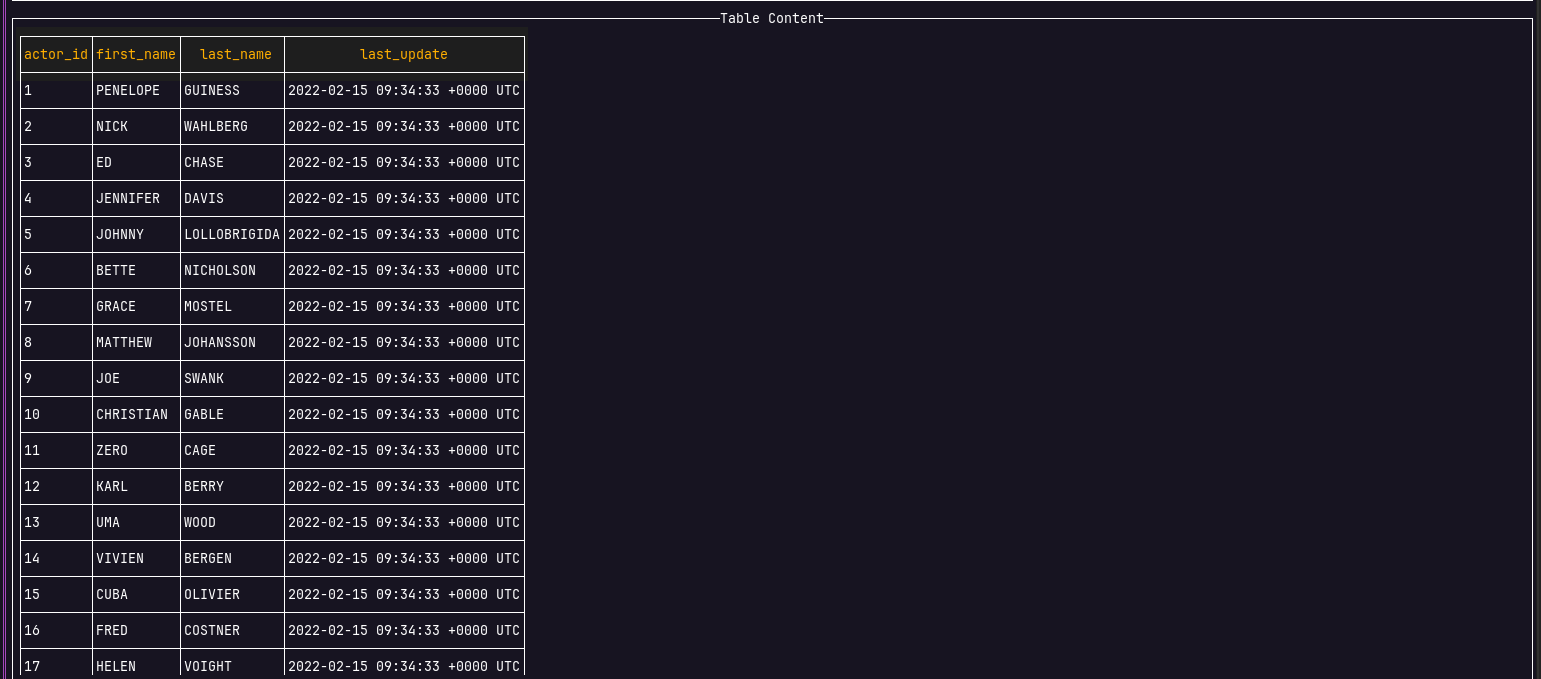
- Data: the rows of the table, or the result of the query you executed
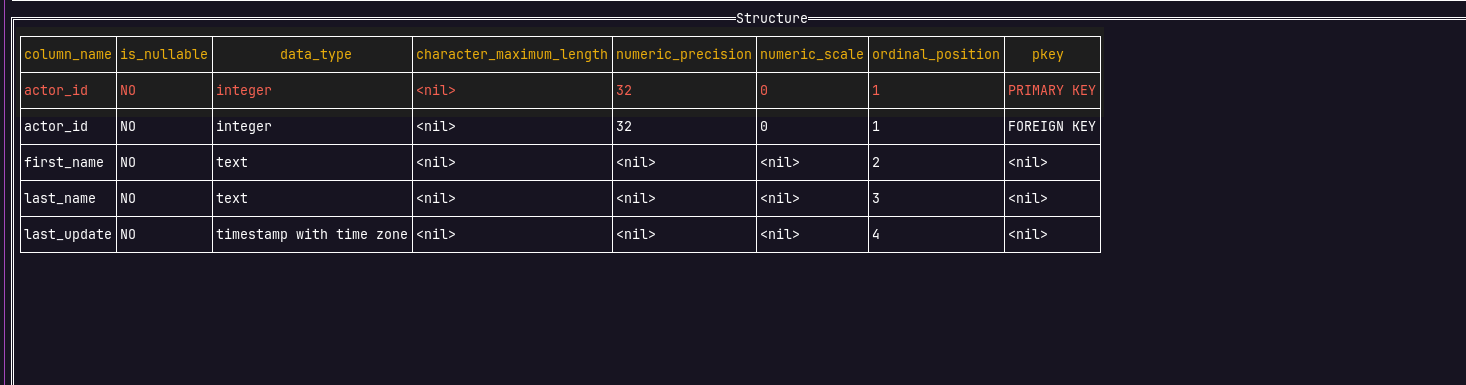
- Columns: the schema of the table selected
- Indexes: the indexes of the table selected
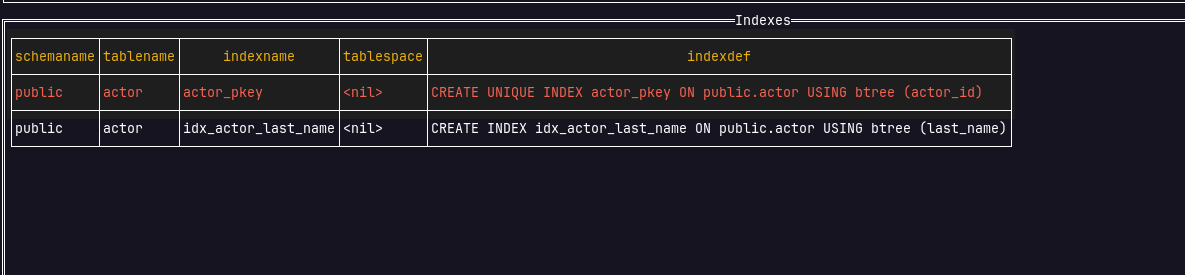
- Constraints: the constraints of the table selected
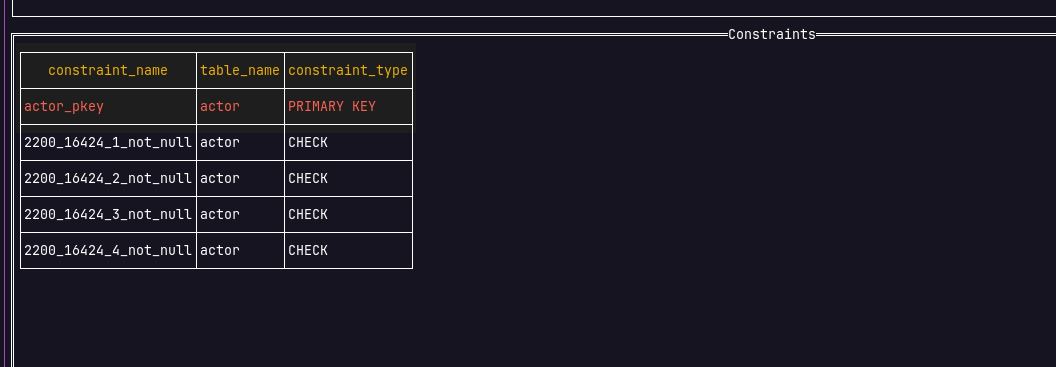
Note
In order to see anything under Columns, Indexes or Constraints, you first need to select a table from the sidebar.
While moving through a result set, the selected cell is highlighted so you can see where you are. Press Enter on a cell to copy its content.
Going full screen
Focus the query editor or the result set panel and press alt+f to expand it to fill the whole terminal, hiding the title, status bar and the other panels — handy when you're reading a wide result set or writing a long query. Press Esc to return to the split layout; moving focus to the sidebar leaves full-screen mode too, since it isn't available there.
Writing your first query
Focus the query editor with the panel navigation keys. The editor works like Vim: it starts in normal mode, where keystrokes are commands rather than text.
Press i to switch to insert mode, then type your query:
SELECT * FROM customers LIMIT 10;
Press Escape to go back to normal mode, then press ctrl+e to execute. The result appears in the Data tab.
Normal mode also gives you the line-oriented editing commands you'd expect — dd to delete a line, yy and p to copy and paste one — plus full Vim motions like w/e/b for words and u/U for undo/redo. The key bindings reference has the full list.
Running one query out of several
You don't have to clear the editor between queries. Keep several statements around, put the cursor on the one you care about, and press ctrl+r to execute only that line.
If you'd rather run all of them at once, separate them with semicolons and press ctrl+e:
SELECT * FROM users; SELECT * FROM orders; SELECT count(*) FROM products;
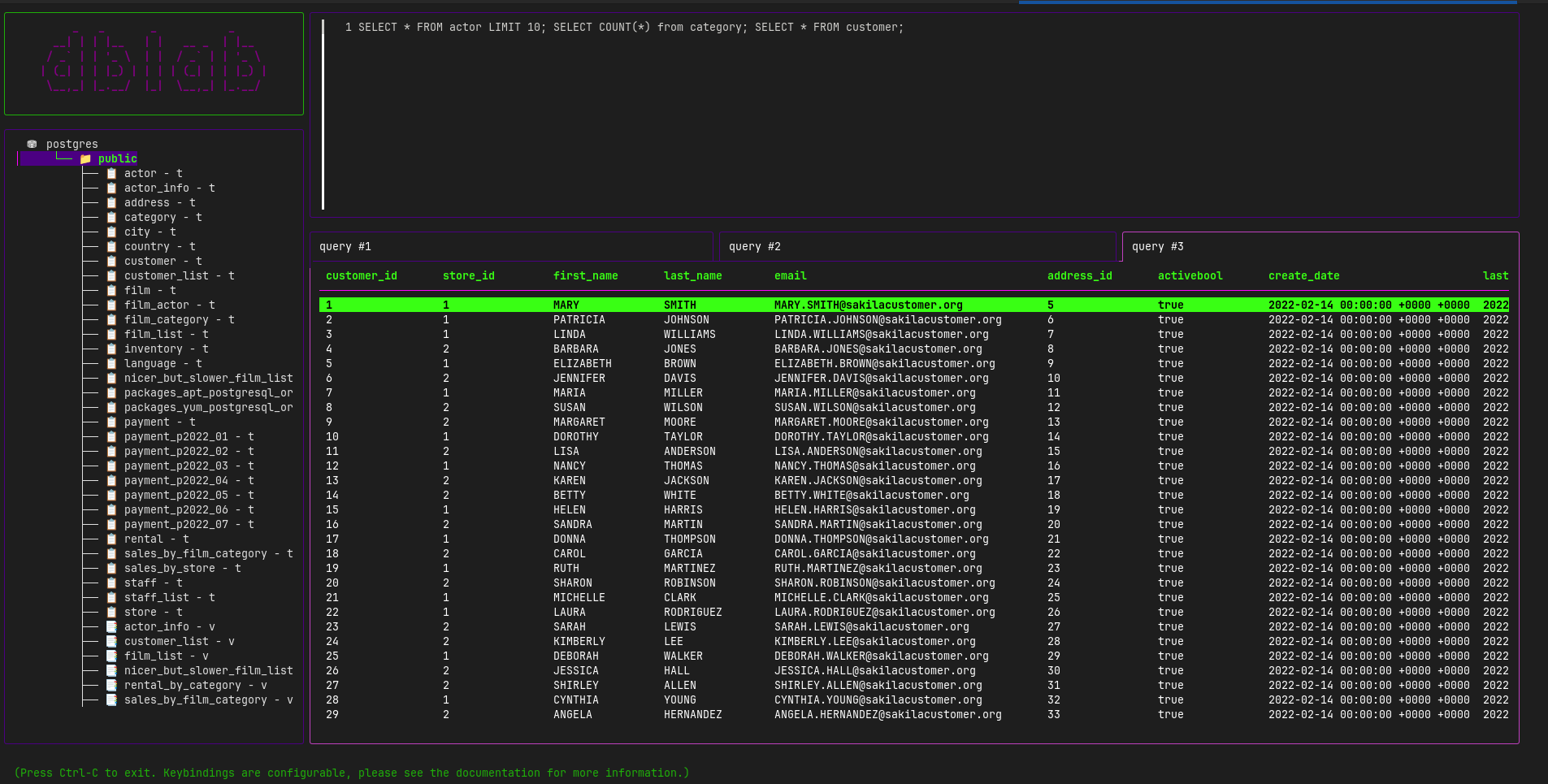
Each statement gets its own result tab — "query #1", "query #2" and so on, three of them for the example above. Up to 5 statements can be run per batch. If one of them fails, its tab shows the error and the others still show their results.
While a batch is running, press Ctrl+c to cancel it; press Ctrl+c again to quit dblab.
Switching the active schema
On PostgreSQL and Oracle, the right-hand side of the status bar tells you which schema the session is using — active schema: public, for instance. That's the schema unqualified table names in your queries resolve against, and you don't have to restart dblab to change it.
Press ctrl+s to bring up the schema picker, which lists the schemas your user can see. Type to filter the list, press Enter on the one you want, and the status bar updates to show it; press Esc instead to close the picker and leave the schema alone. Either way you end up back in the query editor.
The sidebar keeps showing the same tree — switching the active schema doesn't rebuild it, and picking a table there still reads that table's own schema. What changes is where an unqualified SELECT looks.
Note
This applies to PostgreSQL and Oracle only. MySQL, SQLite and SQL Server have no active schema in dblab, so ctrl+s does nothing there and the status bar shows no schema.
The picker also requires that you didn't pin a schema at startup. If you started dblab with --schema, with a schema field in the config file, or with search_path=<schema> in a PostgreSQL connection URL, that schema is fixed for the whole session and ctrl+s does nothing.
Reusing a query you ran before
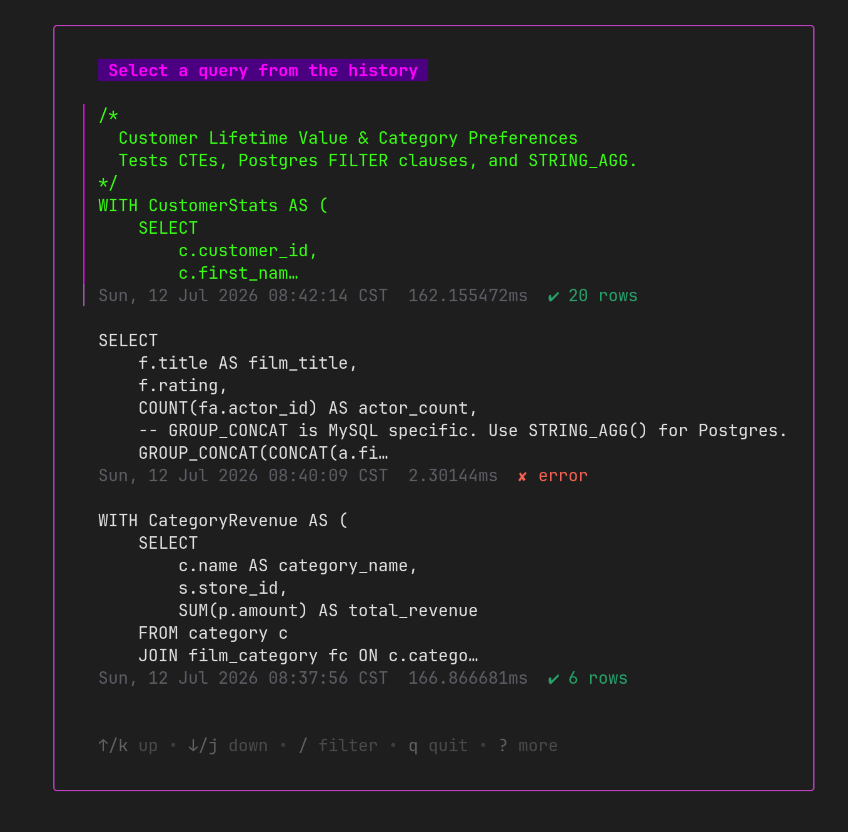
Every query you execute is saved to a local history file, so it survives across sessions. Press alt+h to open the history view, which lists your past queries newest-first. Type to filter the list, press Enter to load the highlighted query back into the editor, or press Esc to go back without picking anything.
When you forget a key binding
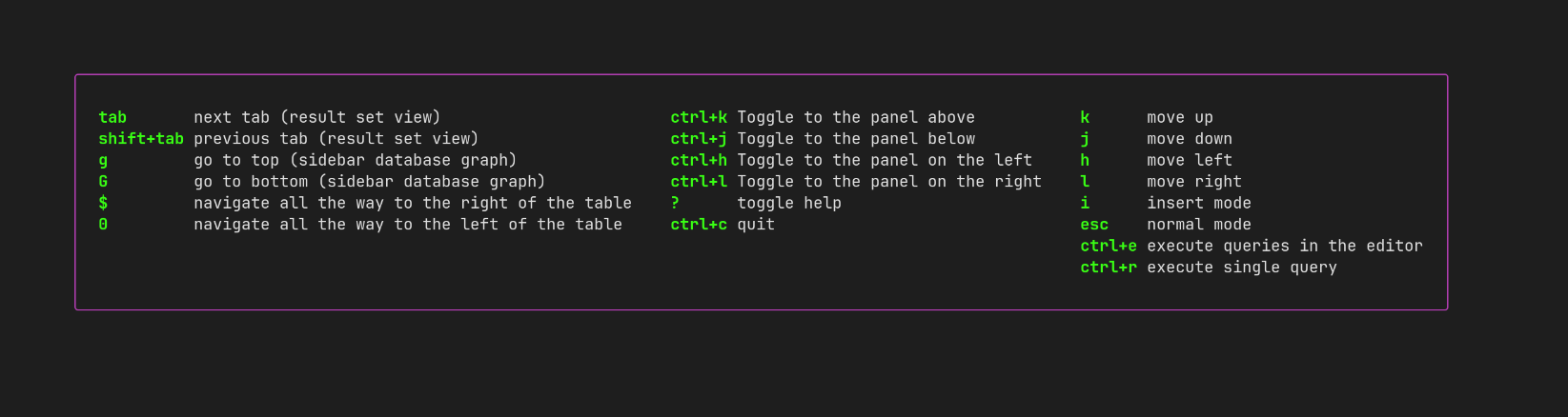
Press ? at any point to bring up the help modal, which lists every key binding in a centered overlay. Press Esc to dismiss it; focus returns to the query editor.
Tip
There are no pagination controls in the result set panel — they proved too slow to page through a table effectively. To work through a large table, write a SELECT with an explicit OFFSET and LIMIT instead.
Next steps
All the key bindings shown here are defaults, and every one of them can be changed through the .dblab.yaml file. See key bindings configuration for how to do that, and the key bindings reference for the complete list.